Release – date: 23/07/2026
Most important new features of version 4.1
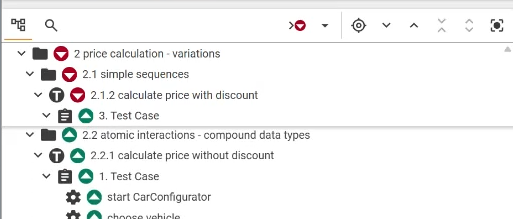
Sticky Tree Shows Path in Web iTORX
The ancestor nodes of the topmost visible element remain fixed at the top while scrolling, providing a persistent context path within the hierarchy.
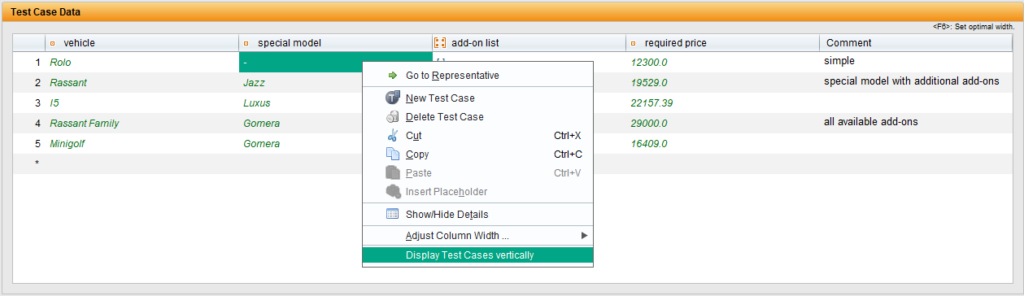
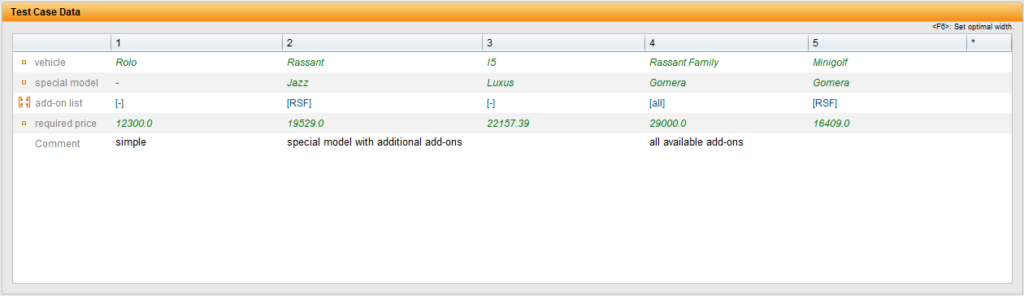
Rotate test cases
The “Display test cases vertically” option arranges test cases in columns.
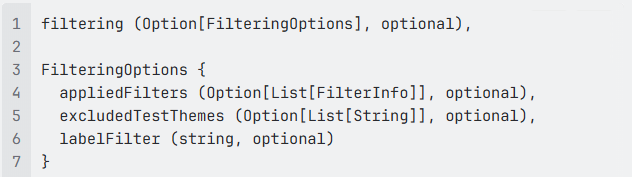
JSON Reports Support Filter Options
For all REST API Calls, that generate full JSON reports, new filter options can be included in the request body.
Online Help
§The introductory pages explaining the concepts behind TestBench have been updated.
End of Support for Jira REST and Excel Bridges < 4.0
The integrations with Jira and MS Excel for requirements management and defect management were reimplemented in version 4.0 of TestBench. The previous integrations will be discontinued in the next version of TestBench, version 4.2.
An automatic migration feature will be available for transferring bridge configurations.
We strongly recommend switching to the new Bridges.
The documentation is in the TestBench Ecosystem: https://imbus.github.io/testbench-ecosystem-documentation/
Communication requires TLS 1.2
All communication between the TestBench client and the application servers is enforced to use TLS 1.2. TLS 1.0 and 1.1 have been formally deprecated since RFC 8996 (March 2021) and should no longer be used.
Release – date: 27/05/2026
Most important new features of version 4.0
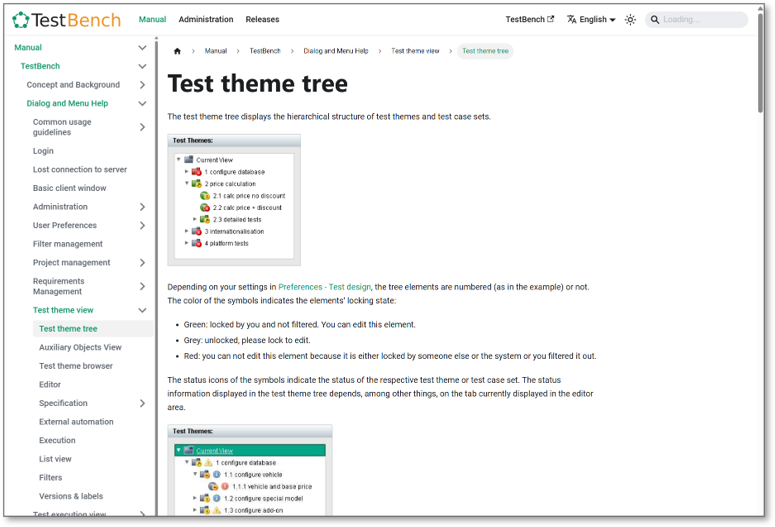
New Online Help
The online help is now opened directly in the browser and can be used independently of the TestBench Client. New features include language switching within the help system, light and dark mode, and comprehensive full-text search.
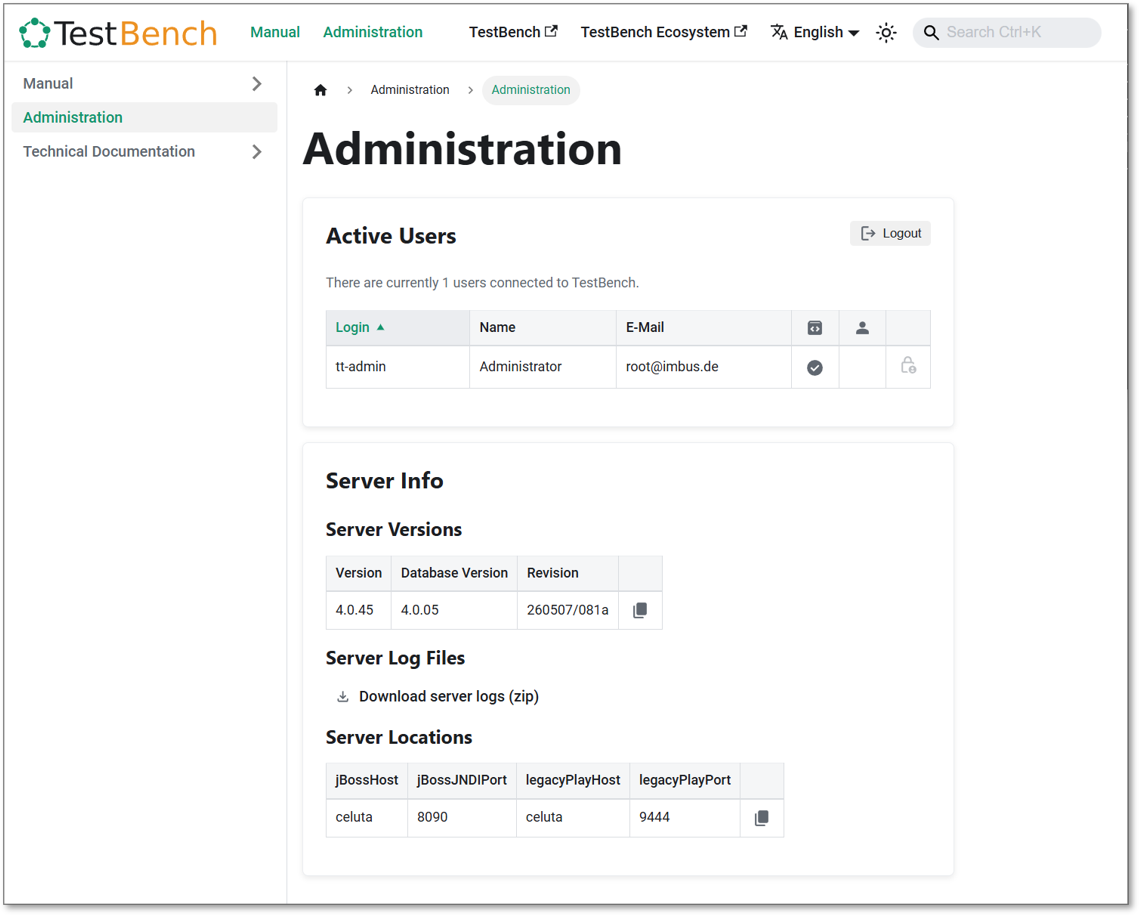
Improved Administration Interface
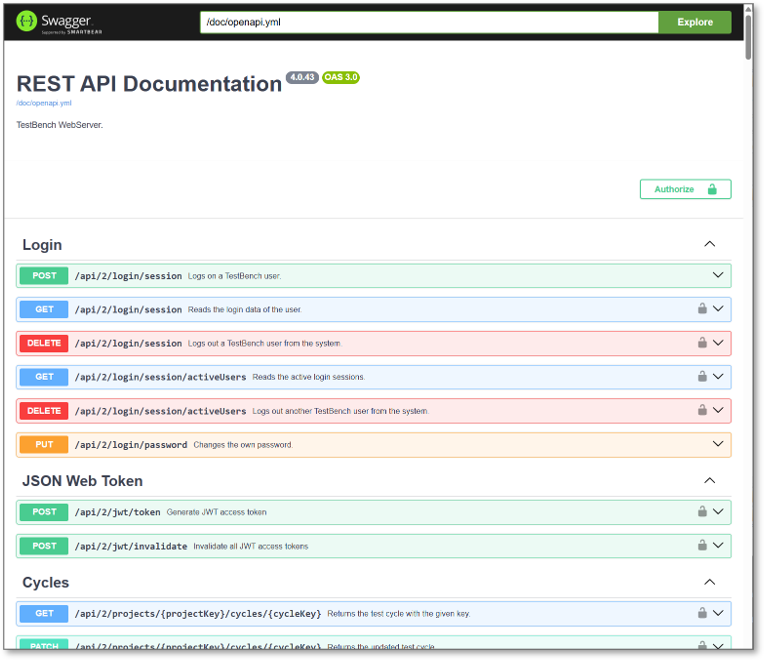
The new administration interface provides quick access to server information, user management, log files, license information, and REST API documentation.
Web iTORX as a Progressive Web App (PWA)
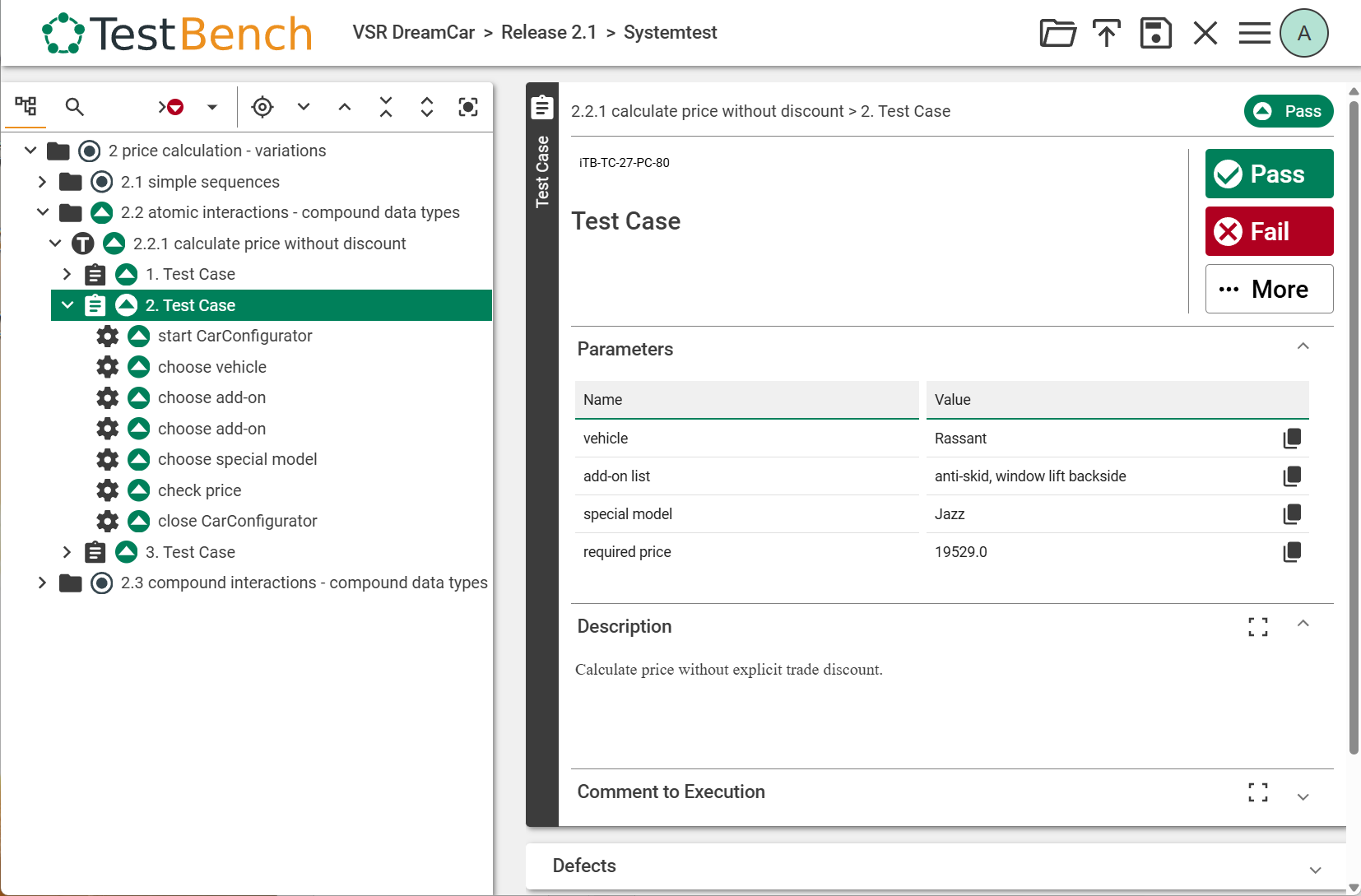
The former Java-based test assistant has been completely redesigned as a web application. Web iTORX runs directly in the browser, can be installed like an app, and updates automatically.
Deeper Integration with Robot Framework
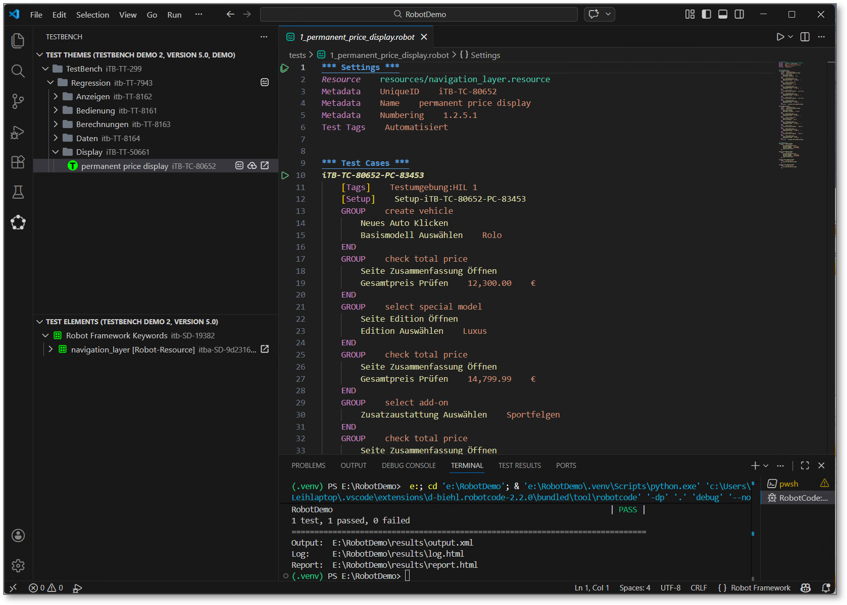
The TestBench Extension for Visual Studio Code enables seamless collaboration between TestBench and Robot Framework. Test cases are specified in TestBench and generated as Robot Framework tests, while the technical implementation of keywords is performed in VS Code.
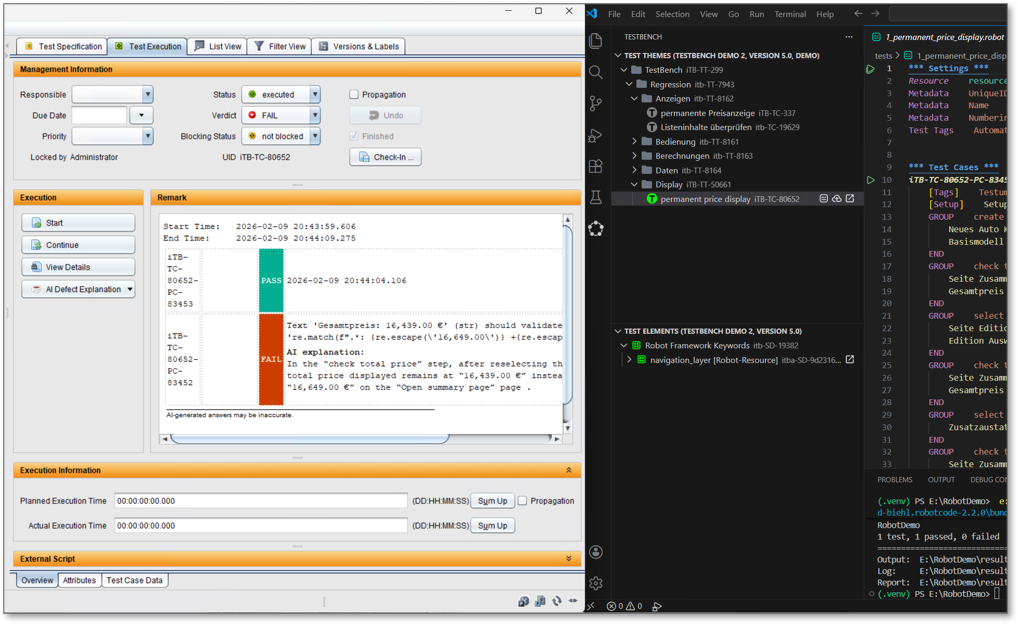
Keywords, descriptions, and test data are synchronized automatically. Generated tests can be executed directly in VS Code, and the results can be transferred back to TestBench.
TestBench AI Agents
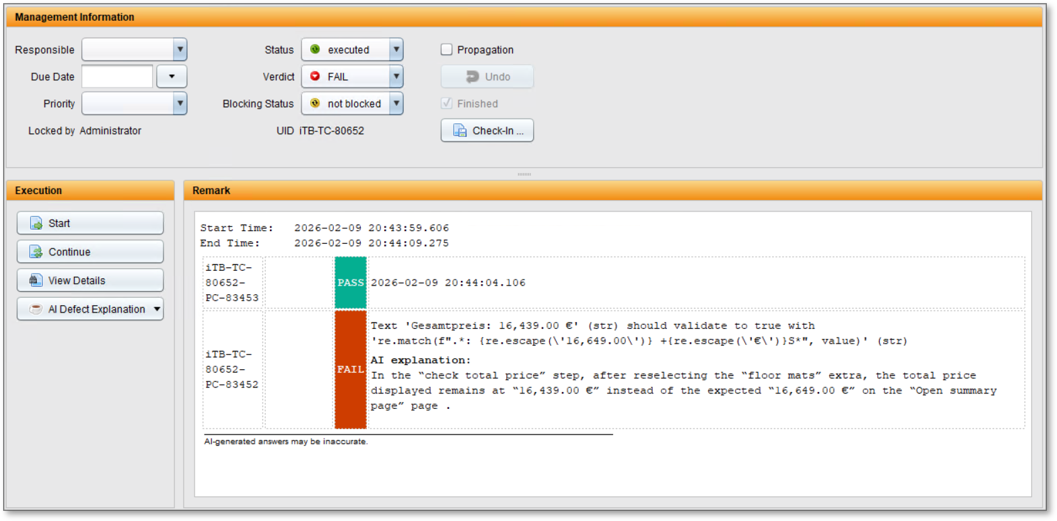
The TestBench AI Agents support the creation of test case set descriptions, the review of test case sets, and the explanation of technical error messages in an understandable way. This helps teams document, review, and analyze tests more efficiently.
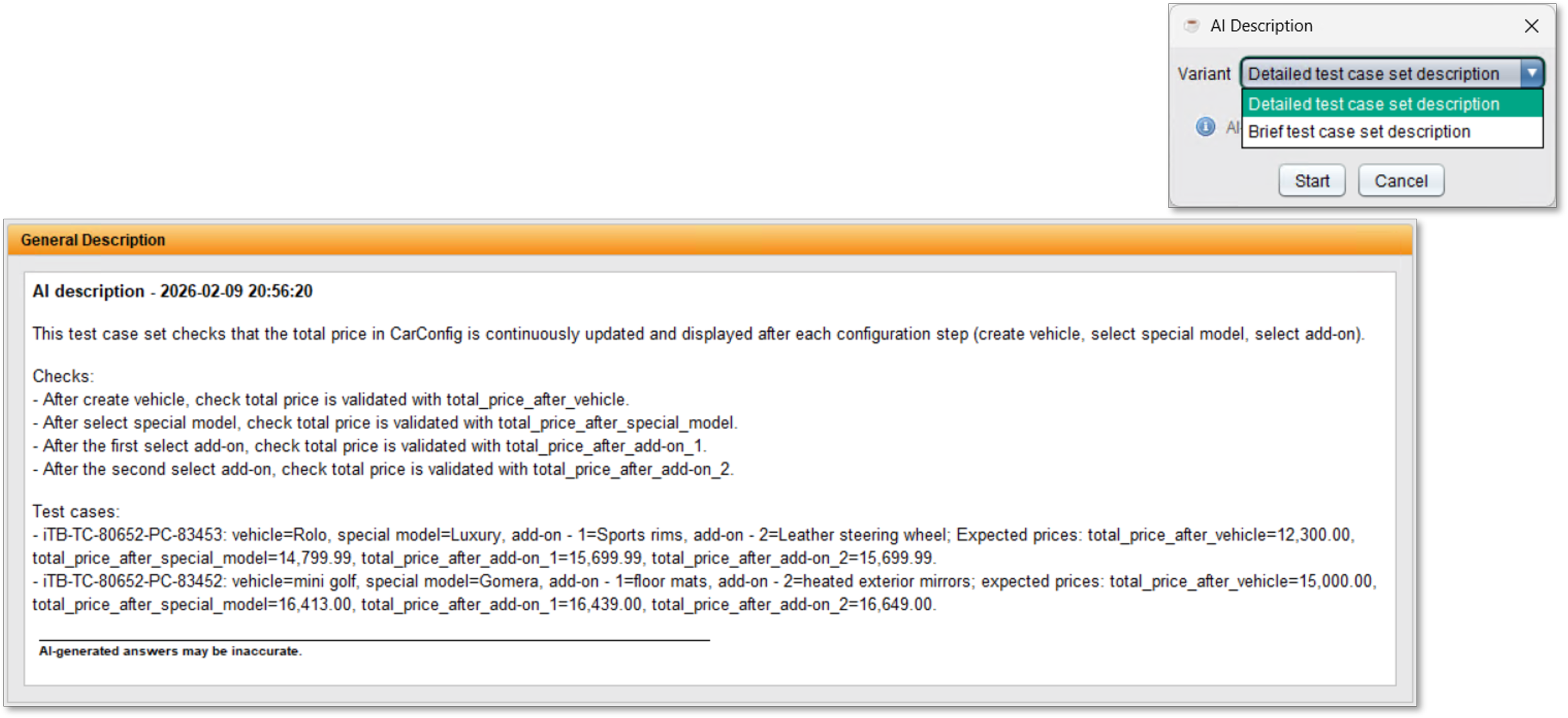
The AI integration is based on a flexible AI proxy with modular prompts. These prompts can be adapted to customer, project, and domain-specific requirements. Depending on the use case, different AI systems can be connected, ranging from local models and private cloud solutions to public AI services.
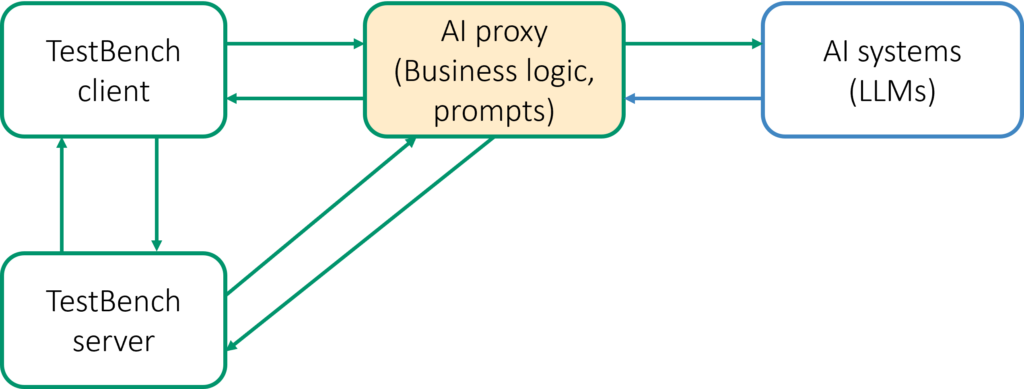
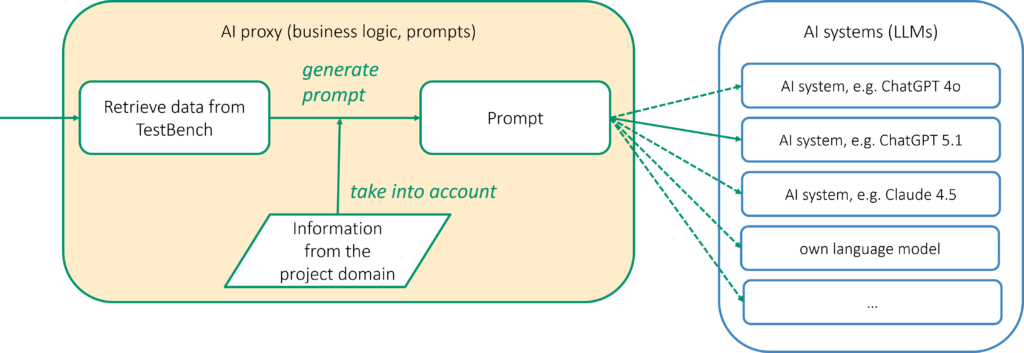
For each use case, the most suitable language model can be selected. In addition, domain knowledge can be incorporated to further improve the quality and relevance of the generated results.
New Integrations for Requirements and Defect Management
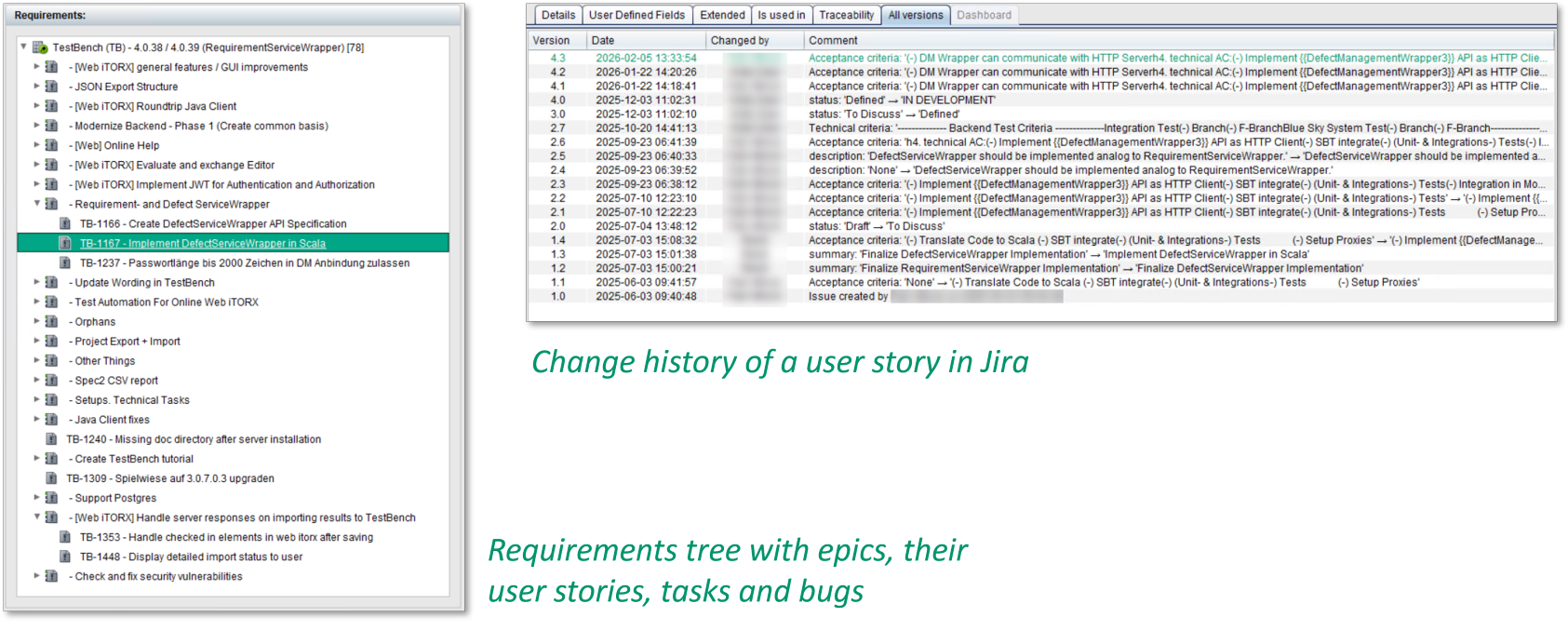
The modernized requirements and defect services enable synchronization with external systems such as Jira. In addition to requirements and defects, change histories and custom fields can also be synchronized.
Extended Interfaces and Integrations
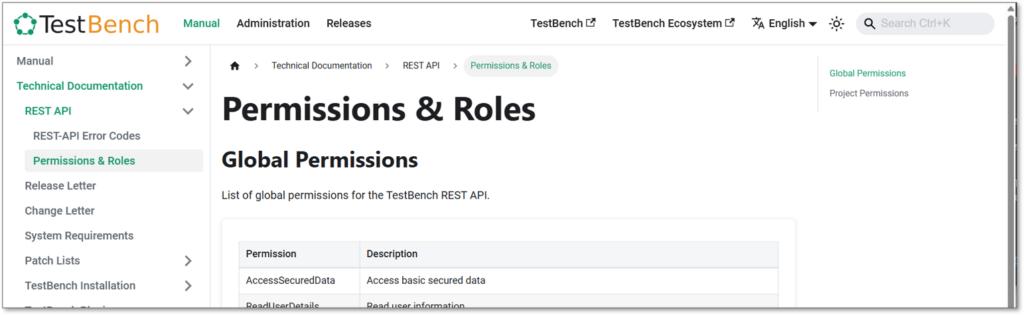
TestBench 4.0 significantly expands the possibilities for integrating external systems. New REST APIs for requirements, defects, and AI services provide a modern foundation for integrations and automation.
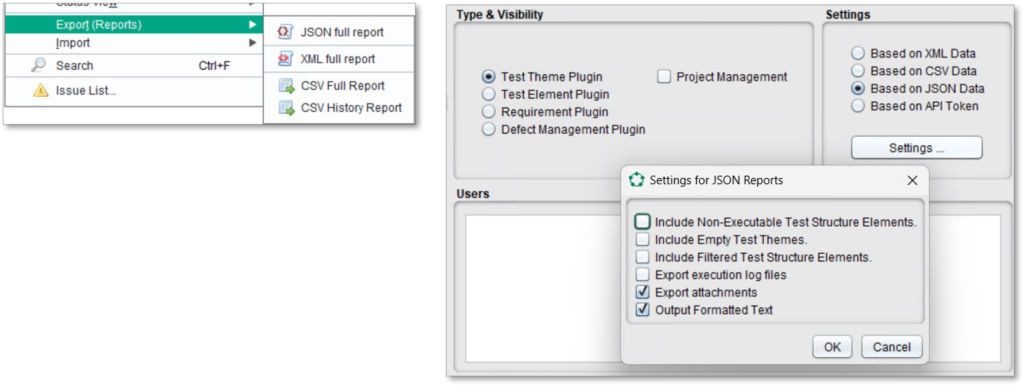
In addition, JSON is now available as a new export and import format, used by Web iTORX and other integrations. For secure communication between TestBench and external applications, version 4.0 also supports authentication via JSON Web Tokens (JWT).
The extended plugin interface provides additional context information and enables even more flexible integration of custom extensions and tools.
Extended Plugin Interface
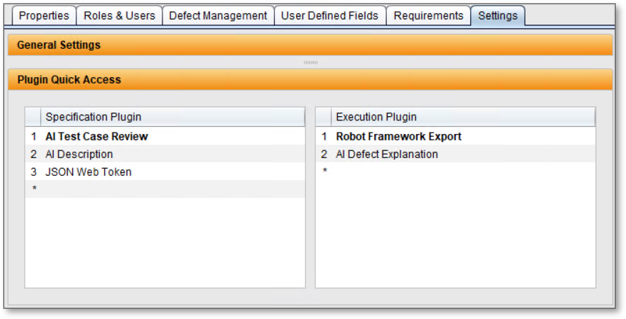
Plugins receive additional context information and can be integrated into projects more flexibly. Multiple plugins can also be conveniently provided through configurable quick-access buttons.
Quick Navigation to the Test Data Definition
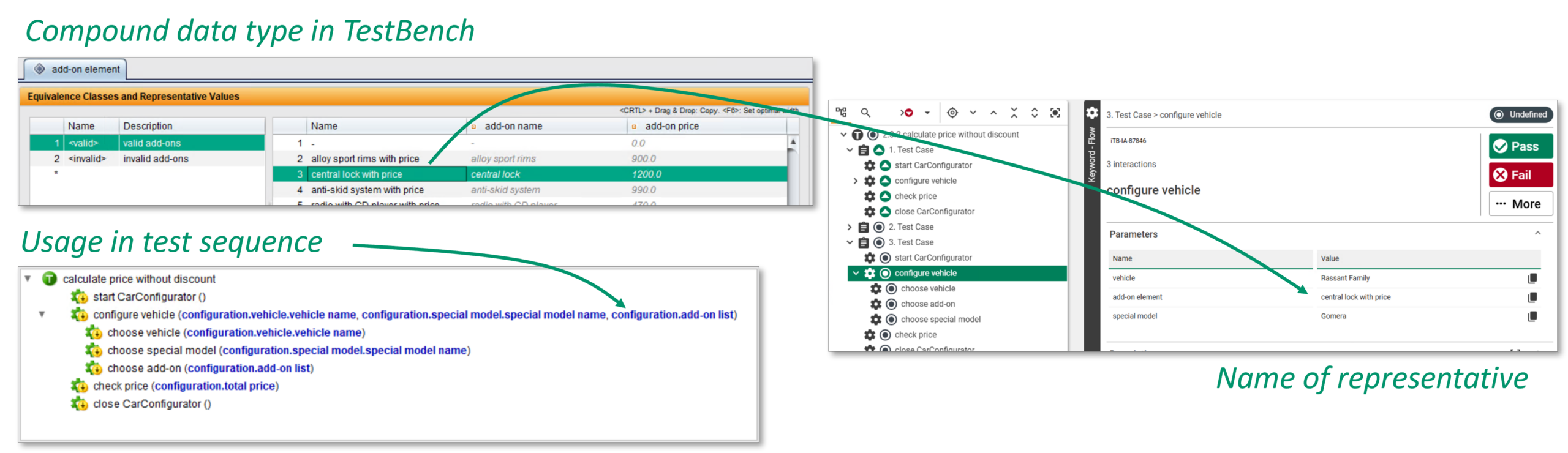
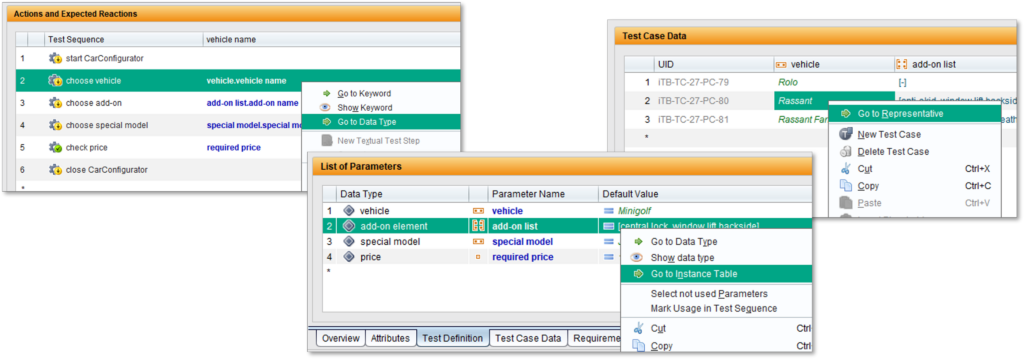
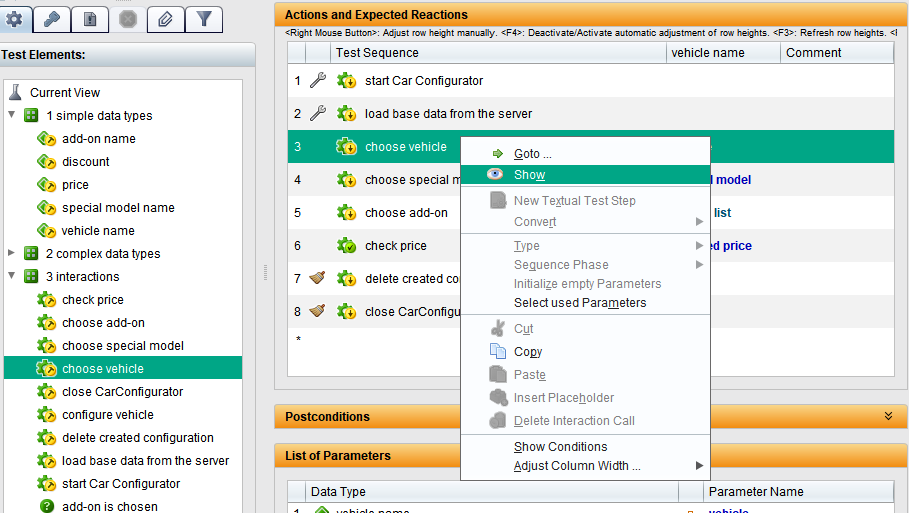
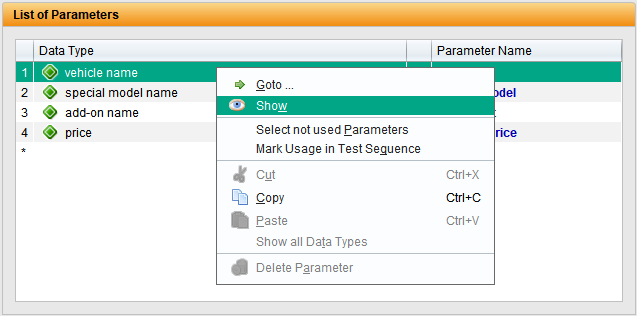
At any point in the test specification where test data is used, you can jump to the corresponding data type. Its definition and all entered values are thus accessible with a single click:
Additional Improvements
Further enhancements include the alignment of terminology with ISO 29119-5, new keyboard shortcuts for creating test elements, and optional password visibility in the login dialog.
Additional Extensions and Tools
In addition to the major new features, TestBench 4.0 offers further extensions and integrations for connecting external systems and supporting automated testing processes.
- Libdoc2TestBench generates TestBench-compatible import formats from Robot Framework Libdoc files.
- TestBench CLI Reporter transfers test results directly from CI/CD pipelines to TestBench.
- Requirement Service and Defect Service enable synchronization of requirements and defects with external systems.
- The TestBench VS Code Extension seamlessly connects TestBench with Robot Framework projects in Visual Studio Code and supports synchronization, test generation, and result exchange.
Release date: 28/07/2023 – Patchlevel 3
Most important new features of version 3.0
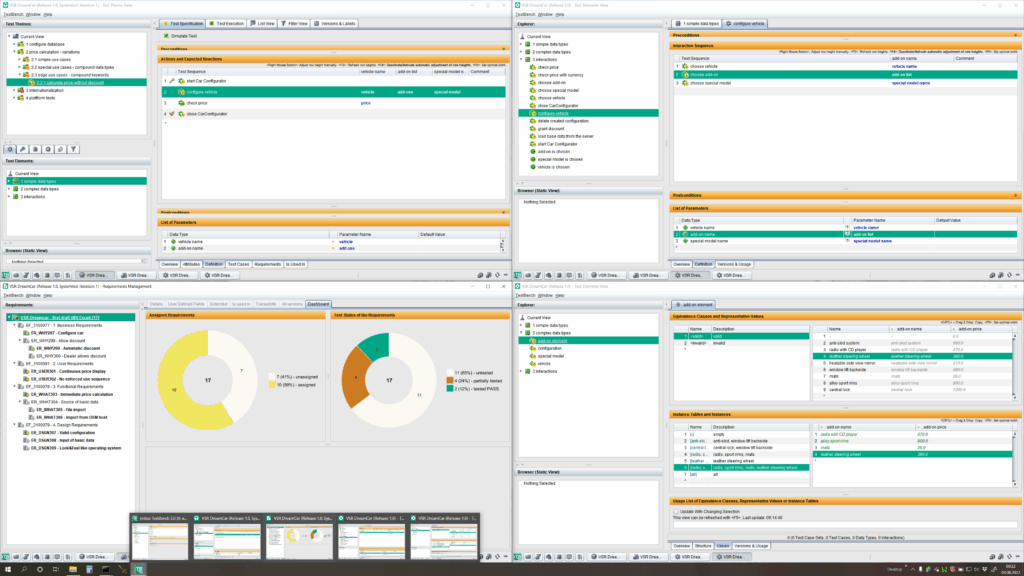
New window manager: Views open their own windows
The views no longer open within the client window, but as separate windows of the operating system.
You can switch between the windows using ALT-TAB. All windows can be accessed from all windows via the respective status bar.
Elements can be assigned across windows via drag & drop, even across multiple screens.
The windows have a progress indicator and are restored exactly when the client is started (size, position, screen).
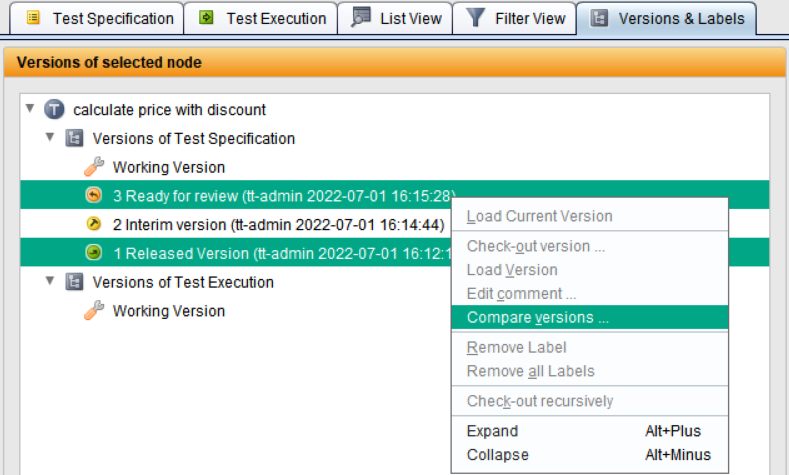
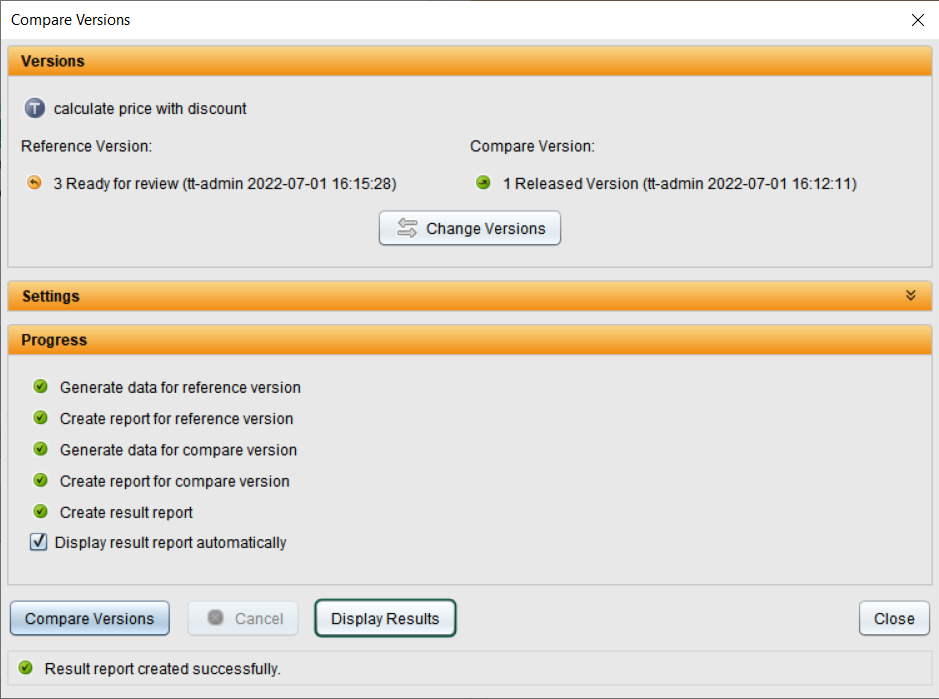
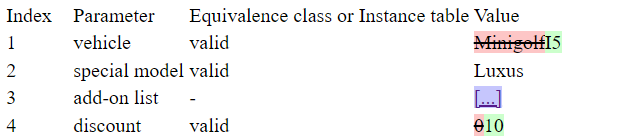
Comparing versions
Versions of test case sets and test elements can be compared. The result is opened in the browser as a web page.
Quick access to plugins
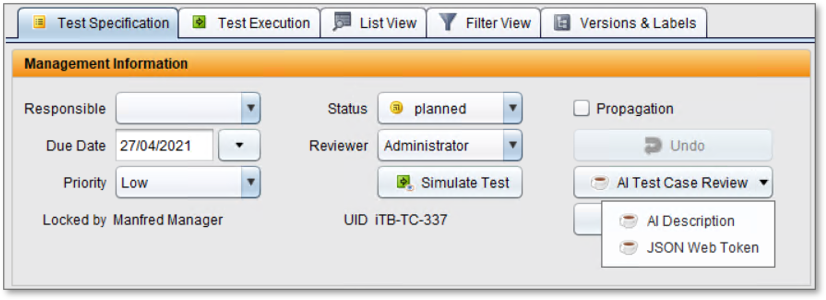
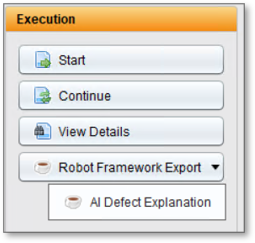
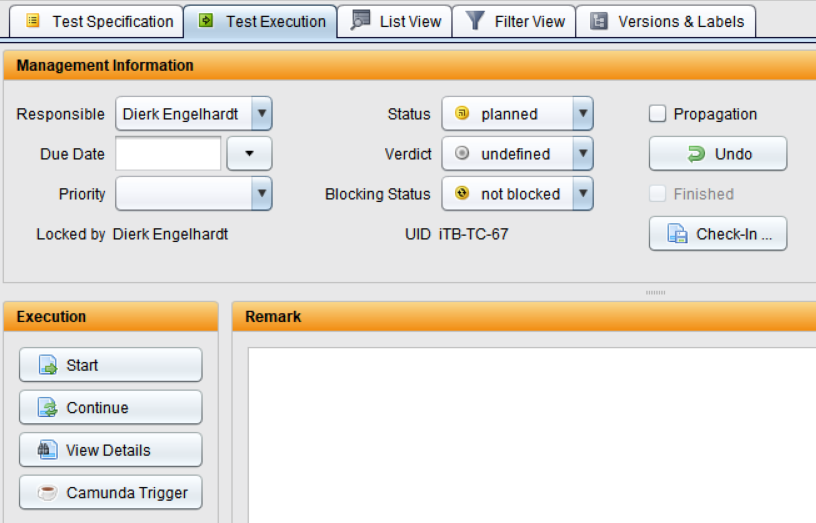
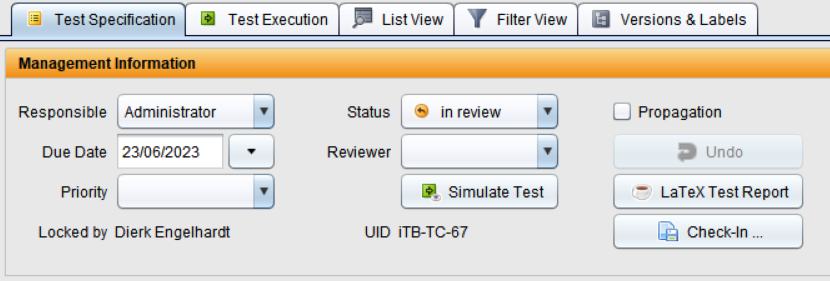
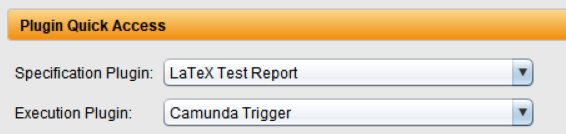
A plugin can be defined for both the specification and the execution, which appears as an additional button in the management information of the specification and under the buttons for starting the manual test execution.
These buttons can be used to execute the plugin directly without any detours.
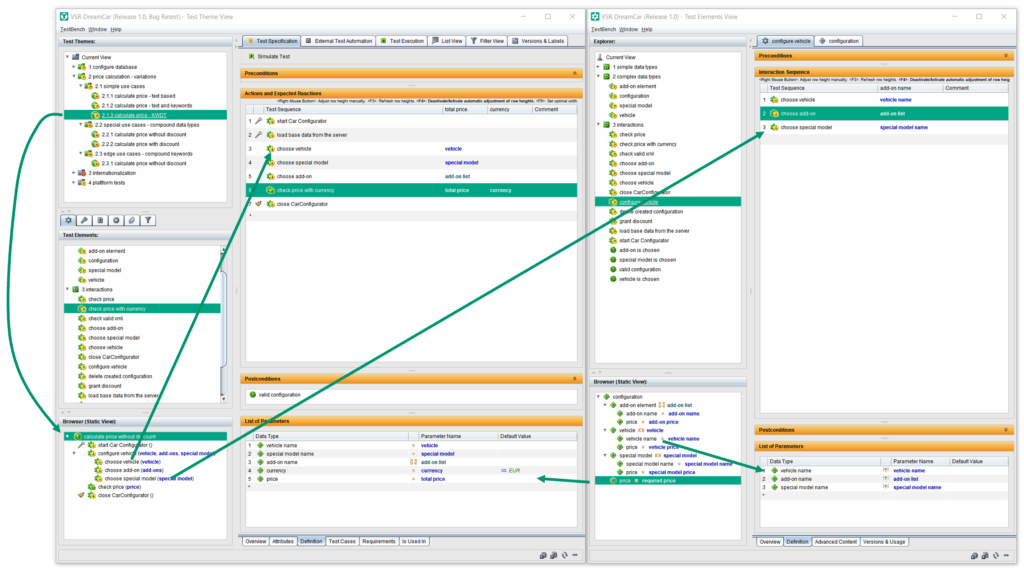
Assign from browser and display textual steps in it
Elements can be dragged into the browser to display their structure.
All displayed elements can now be assigned anywhere from the browser.
In the browser, the first characters from the description of the textual test steps are displayed as their name.
(Same functionality as in iTORX)
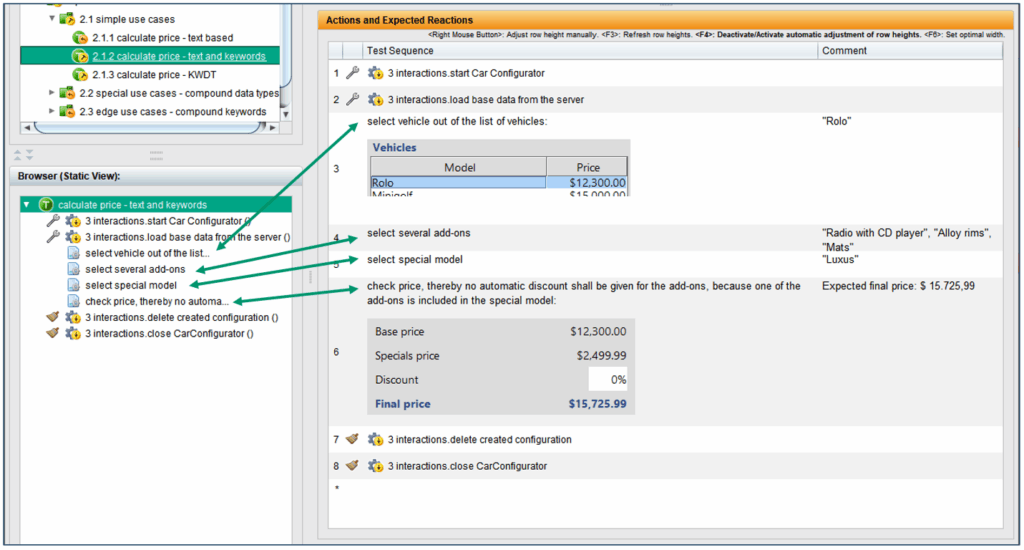
Default values for parameters
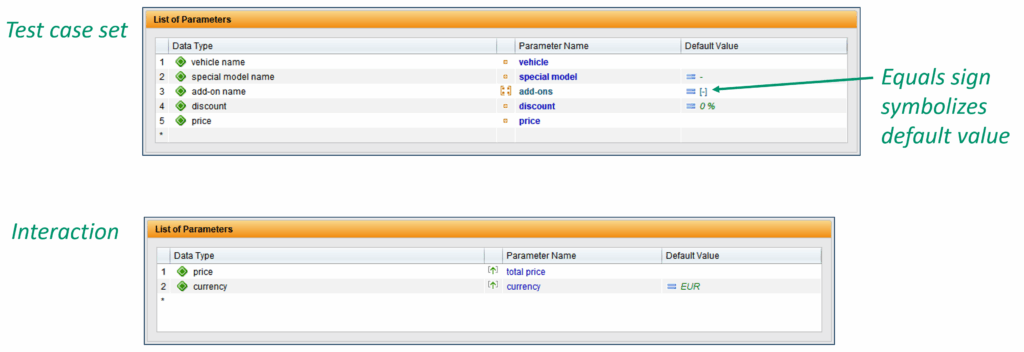
Default values can be defined for parameters in the parameter lists of test case records and interactions.
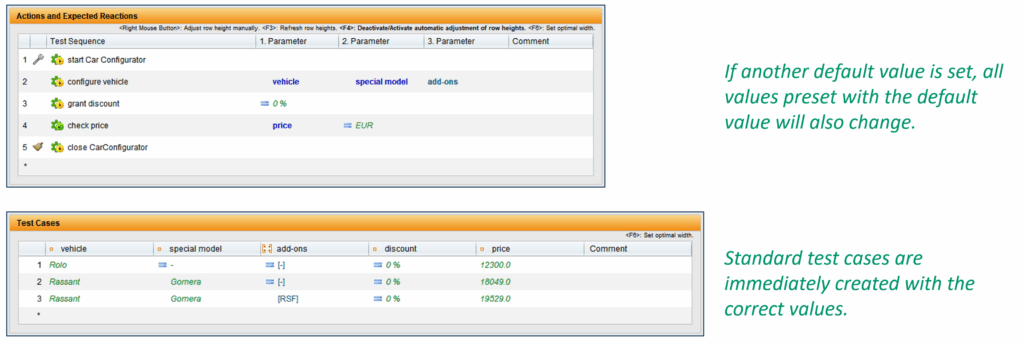
If new test cases are created for test case sets, the default values from the parameter list are used instead of the “red ?”.
When interactions are called up in test sequences, the default values are also used instead of the “red ?”.
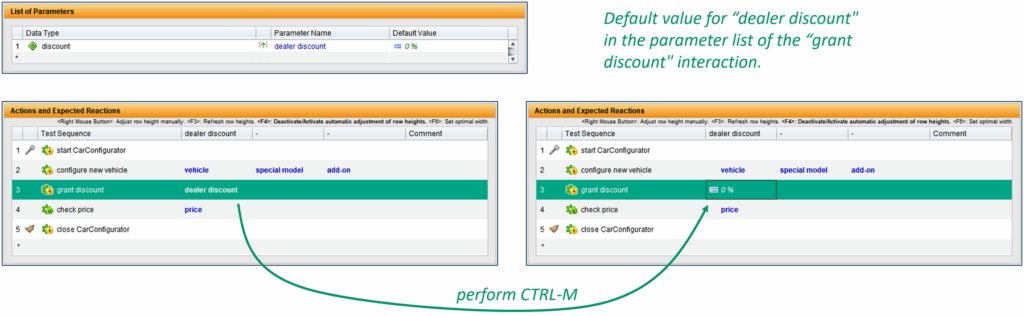
In test sequences, the default values from the parameter list of a called interaction can be set directly using the keyboard shortcut CTRL-M.
If a different default value is set, all values preset with the default value also change.
Use references directly as parameter values
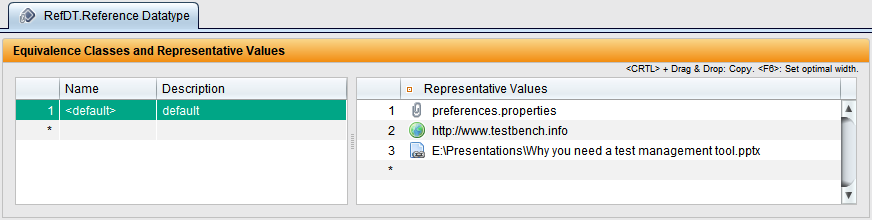
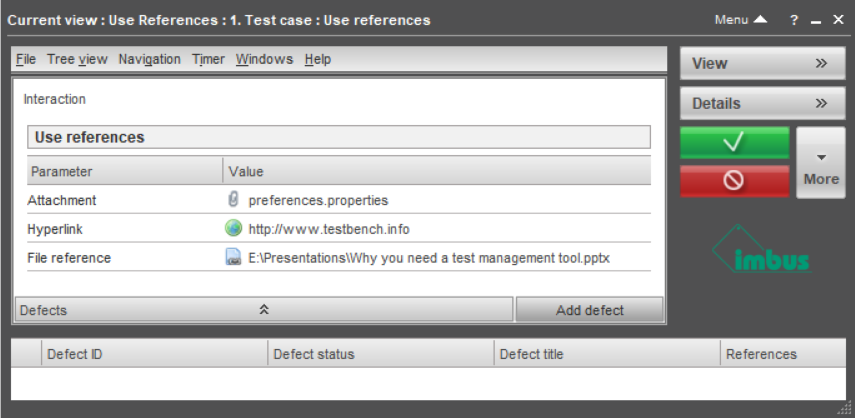
A new test element, the reference data type, allows references (attachments, file references, hyperlinks) to be used directly as representatives.
Reference data types are atomic data types whose representatives can be used in the same way as the representatives of the standard data types.
The representatives of the reference data types can be distinguished from normal representatives by a preceding icon.
Extended content for interactions
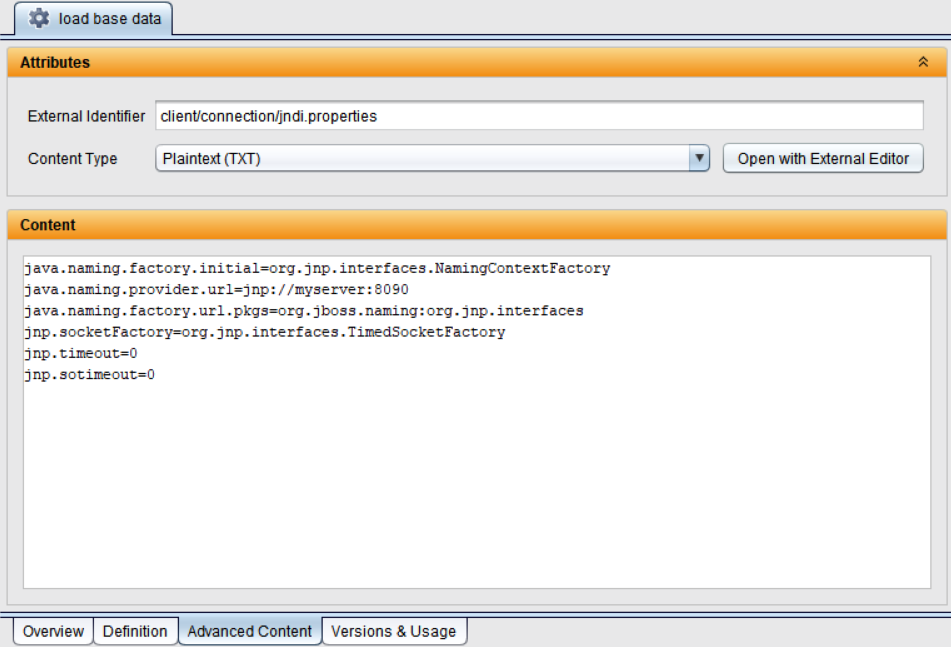
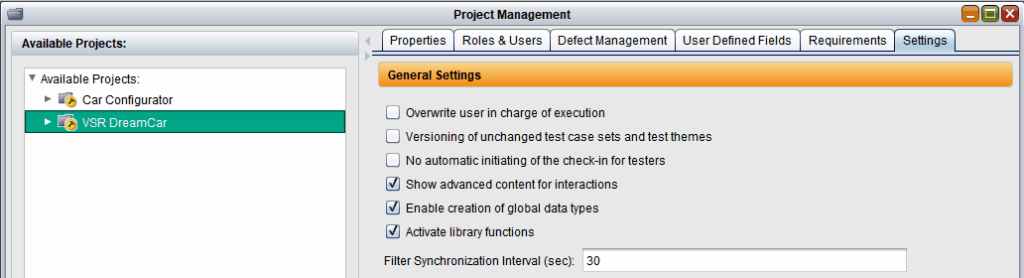
In addition to the description, interactions can also manage further information. The content is given a type so that it can be better displayed and processed externally.
In this extended content, control data or code snippets can be used in the test execution, for example.
Versions and uses of the test elements merged
For a better overview, the versions and usages for test elements are now on a common tab card.
Further additions have been made:
- Information about the version
- Accessible visualization of the loaded version
- Change marker
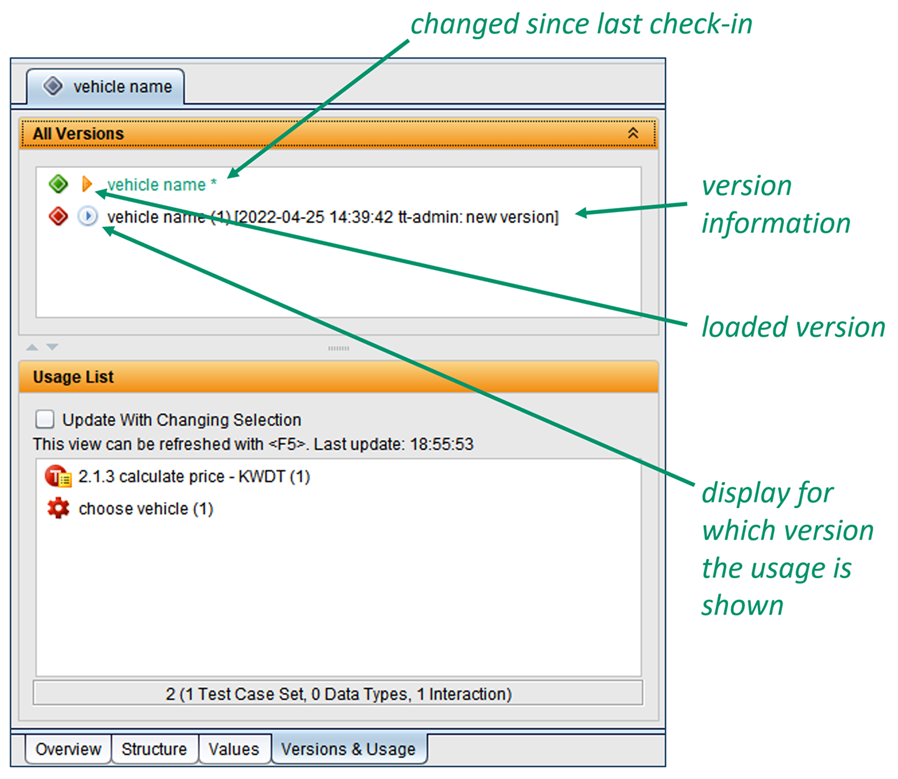
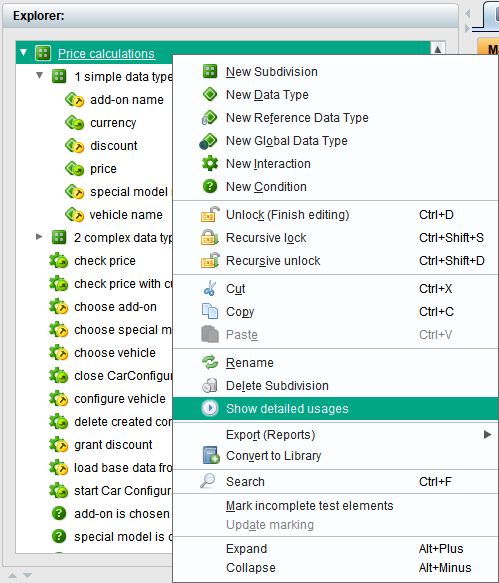
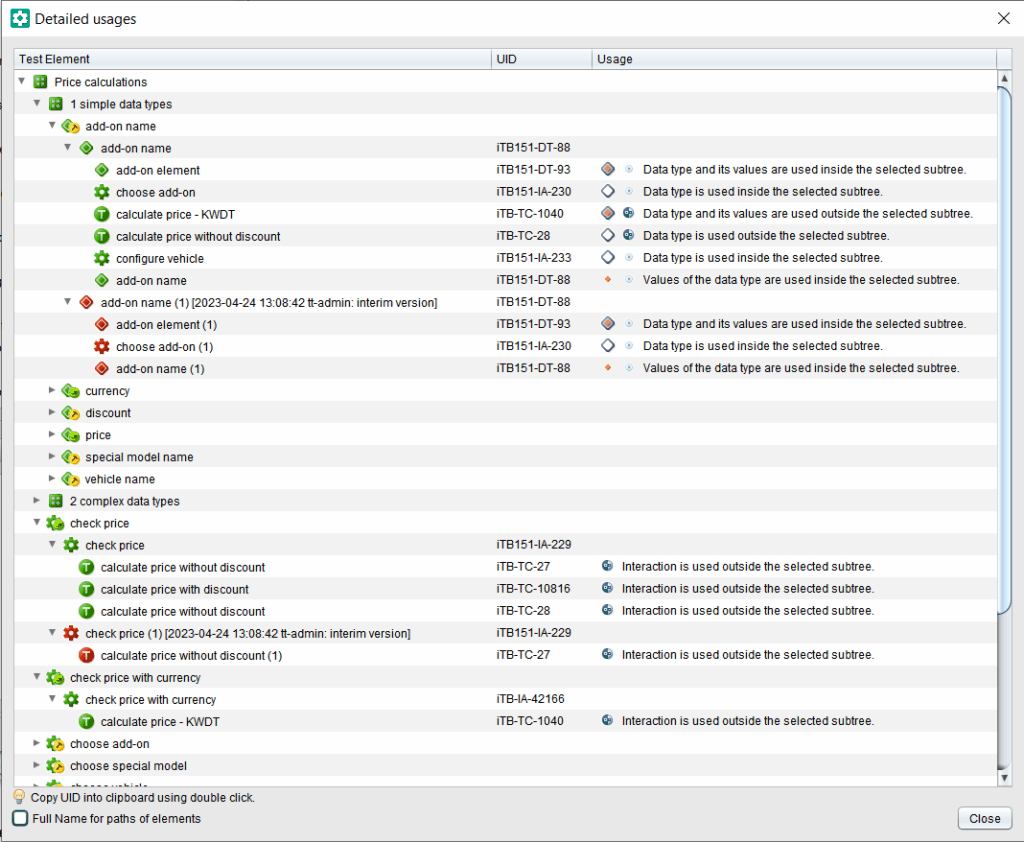
Show detailed use of test elements
In the test item view, all the usages of a test item can be displayed. The usages are displayed for all versions of the test element.
For each usage, it is also shown whether the usage is inside or outside the associated subtree. For data types, the use of its representatives is also taken into account.
The detailed usages can also be displayed for all elements of a subdivision. For example, it can be determined whether a subdivision can be deleted or whether there are still usages outside the subdivision.
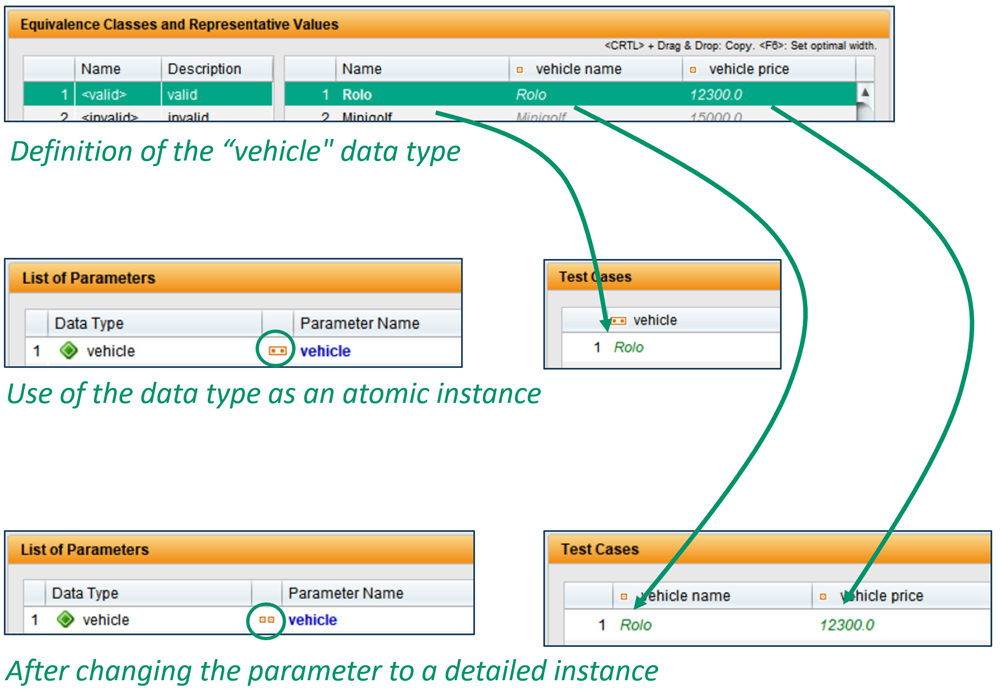
Convert atomic to detailed instance without loss
If the parameter of a test case set is subsequently converted from an atomic instance to a detailed instance, the values of the underlying sub-data types are entered in the test case table.
The same applies to the conversion of a detailed instance into an atomic instance.
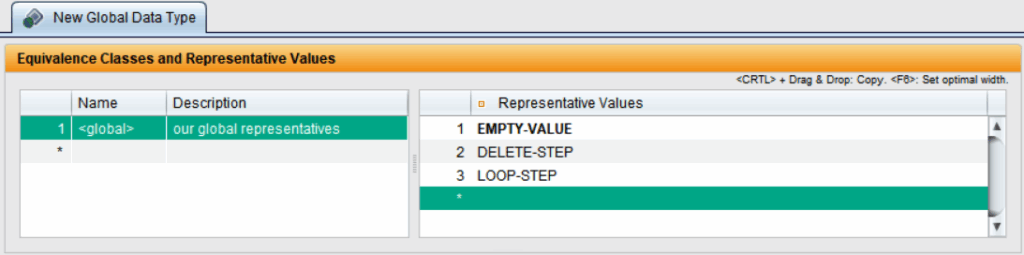
Test object version-wide representatives
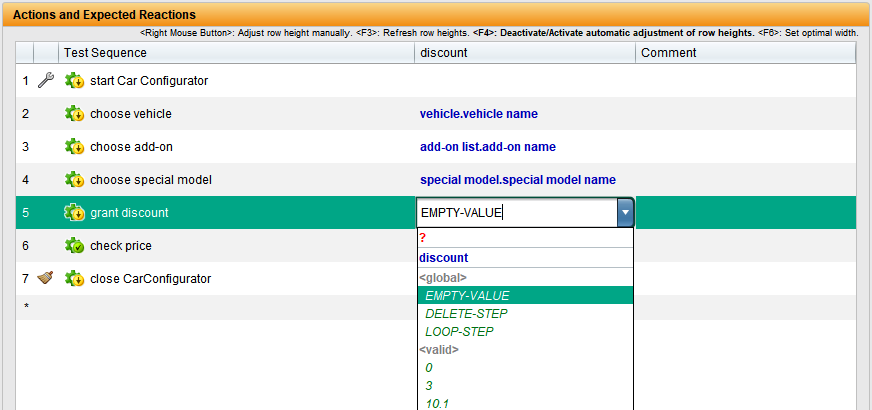
For values with certain semantics, it makes sense not to redefine these values in each data type, but to have a way of defining these values in a central location.
Such a value could be the “explicitly empty value”, for example, so that a value can be set to explicitly empty everywhere.
Another new test element, the global data type, is used for this purpose. Its representatives can be selected in the selection lists of other data types of the same test object version. To do this, the use of global data types must be permitted for these other data types.

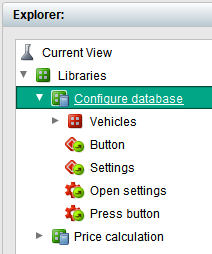
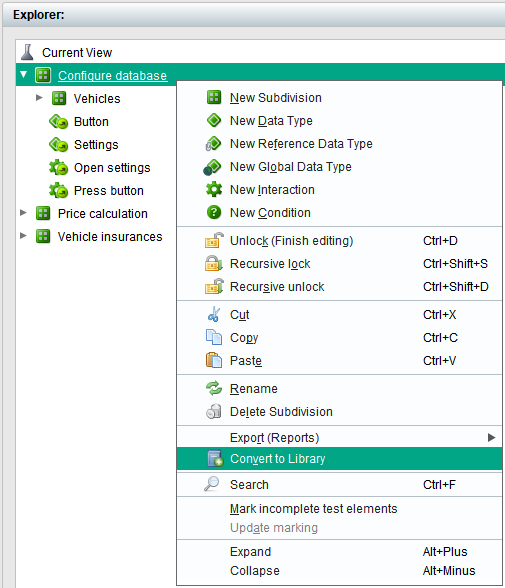
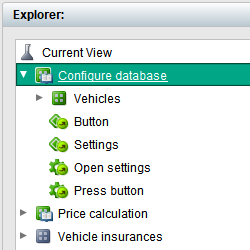
Test element libraries
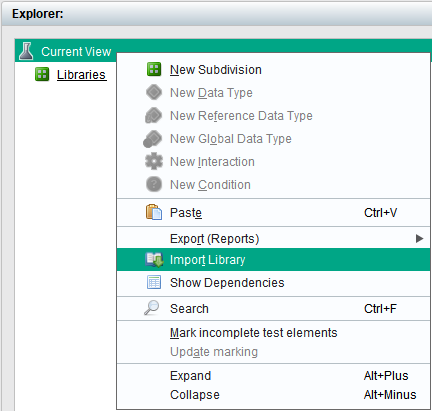
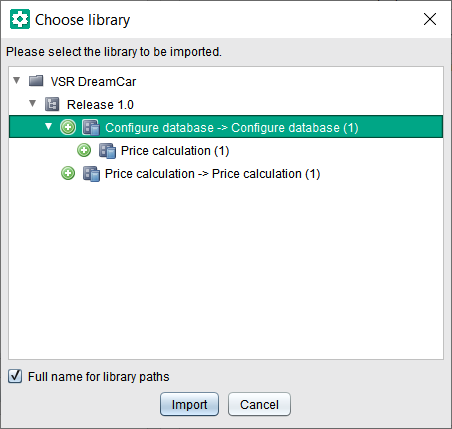
Test elements (interactions, data types and conditions) can be summarized centrally in libraries within a test object version. These libraries can be used in other test object versions.
The basic functions are:
- Consistent versions of the elements of a library are generated and versioned as baselines.
- Updating to new versions (= new baselines) of a library is possible.
- The test elements of a library are write-protected in the test object version used and can therefore only be changed centrally.
- Libraries can have dependencies on other libraries.
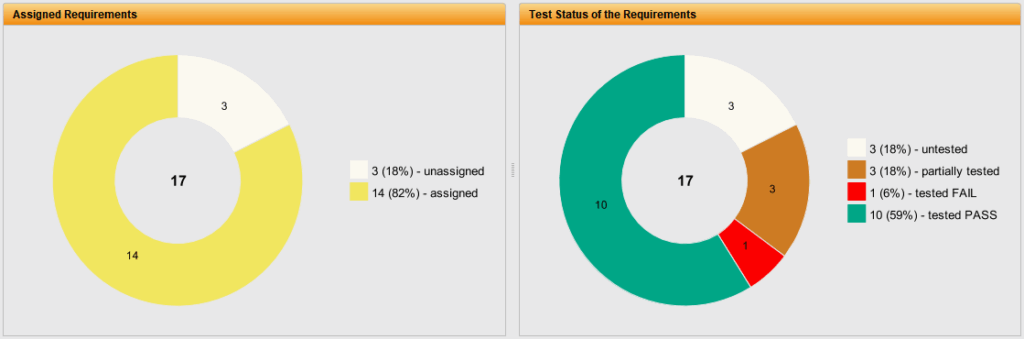
Requirement coverage and distribution of the test result status
In requirements management, metrics on the coverage of requirements by tests and on the distribution of the test result status of the requirements are displayed for baselines.
If there are several baselines, the metrics are also displayed for all baselines as a whole.
The graphic can be saved or printed in the context menu of a metric.
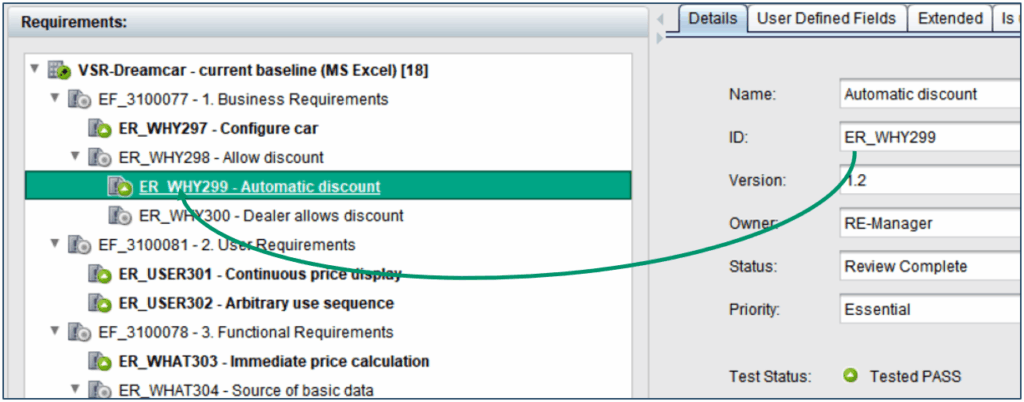
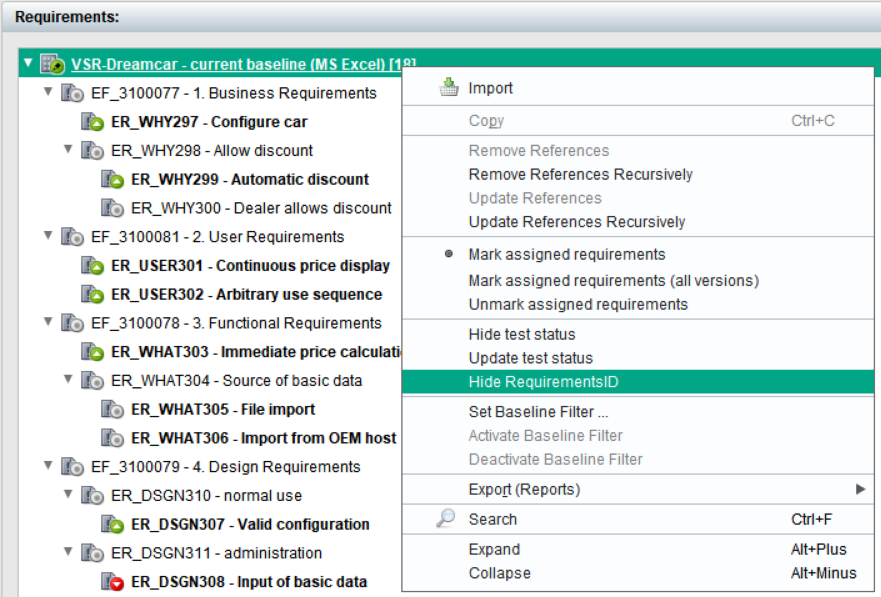
Display requirement ID in the requirement tree
The ID of a requirement can be displayed in the tree of requirements.
Compared to the title, the ID of a requirement is used more frequently to identify a requirement and is now directly visible.
Release date: 15/12/2020
Most important new features of version 2.6.1
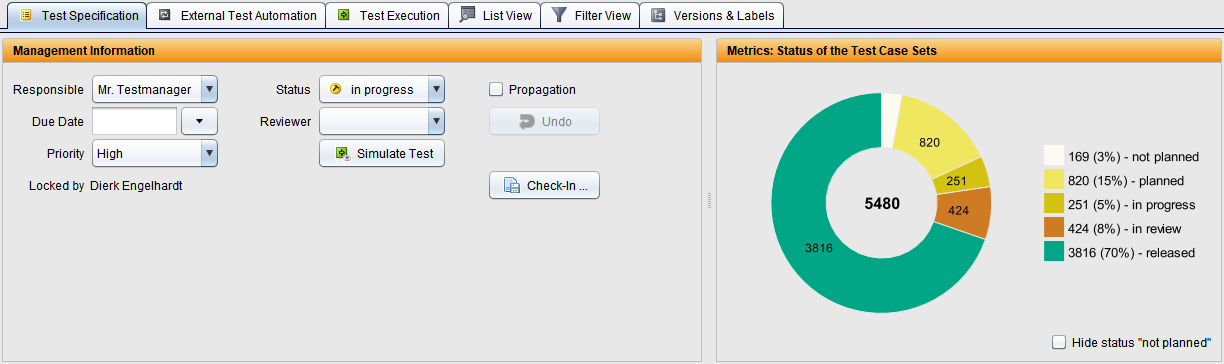
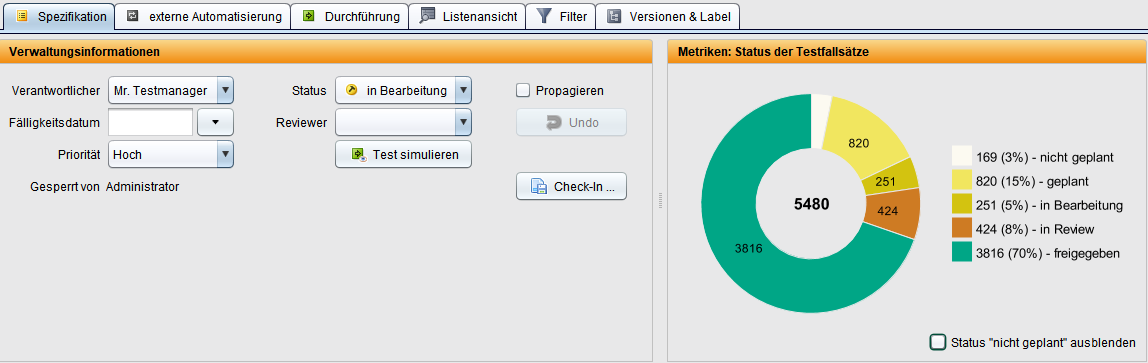
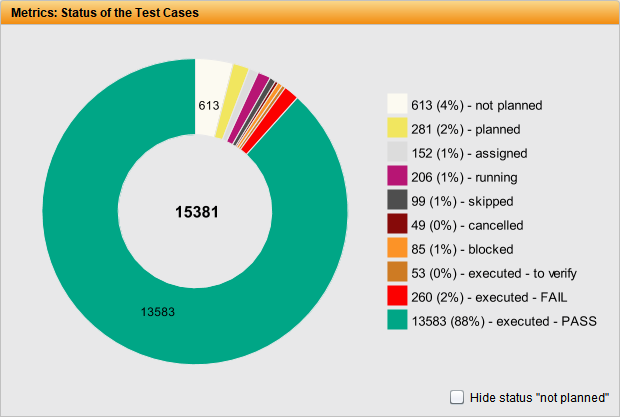
Status distribution of the test specification
The distribution of the status in the subtree is displayed in each test topic.
The graphic can be saved or printed in the context menu of the metric.
For the root of the test topic tree, the Current view, the status distribution is displayed for the entire tree.
Accessibility
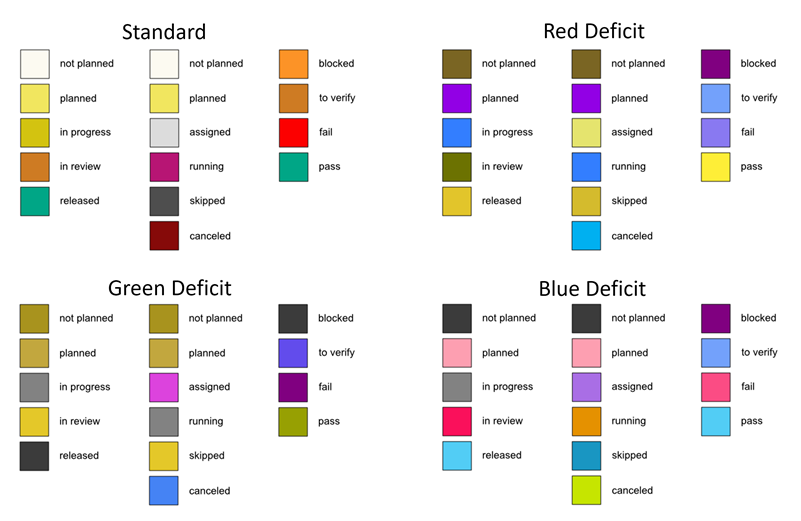
The colours of the graphics can be adjusted for each client.
The file ‘nimbus.properties’, in which the colours are defined, exists in the ‘bin’ directory of the client.
Suggestions for the various colour deficits are stored, which each user can adapt individually to their needs.
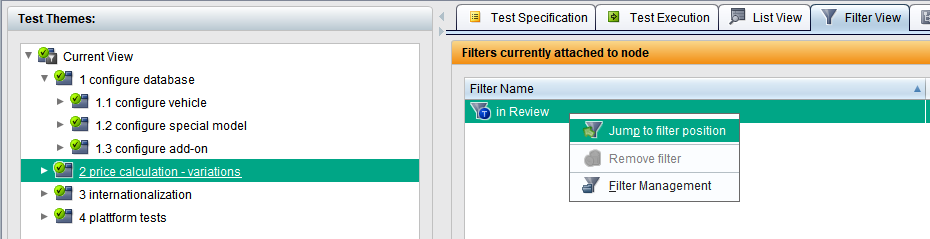
Find the position of a filter
Deeply nested trees often contain many different filters at different positions in the trees. The position of a filter can now be easily found in the tree.
Double-click on the filter name to jump to the definition of the filter in the filter management.
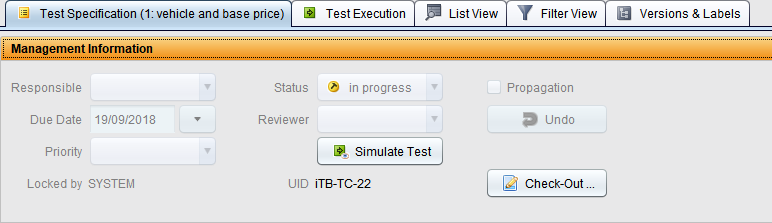
Direct check-out of new versions
Versions checked in (locked) or loaded by the system can be checked out immediately; it is no longer necessary to switch to the version list.
In these cases, the button for checking in changes to the button for checking out.
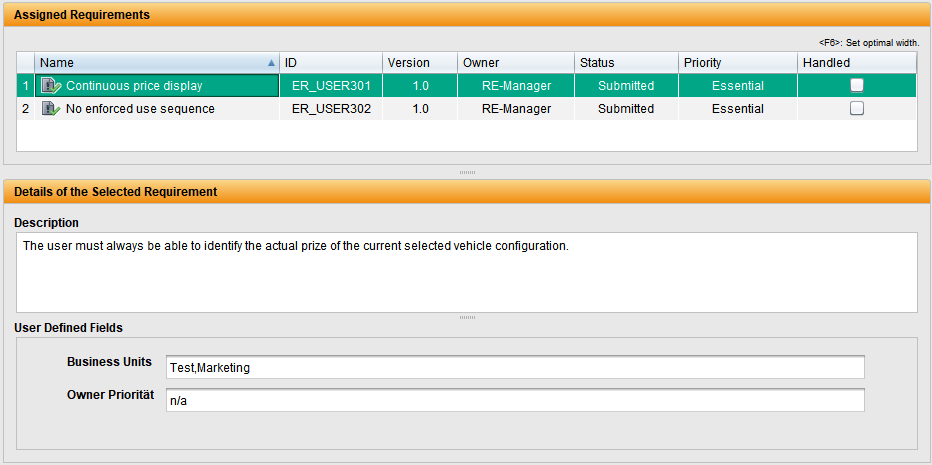
Details of the assigned requirements
The details of a requirement are displayed directly in the test specification. There is no need to switch to requirements management.
This applies to requirements for test topics and test case sets.
Parameter title of the test sequences
The table titles of the parameters in the test sequence adapt to the parameters of the selected line.
The parameter names of the called interaction are displayed, which are also displayed in the parameter tooltip.
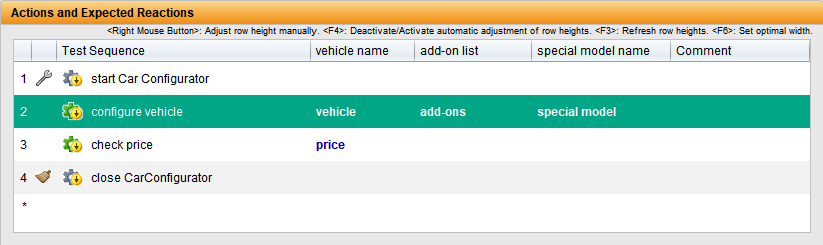
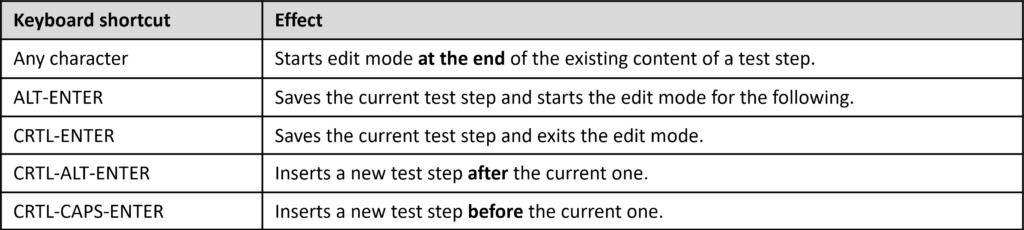
Capture test sequences even faster
Test sequences consisting of textual test steps can be entered and edited entirely using the keyboard.
This also applies in particular to test sequences consisting of interactions and textual test steps and the comment columns.
Exchange test steps
Test steps in test sequences can be exchanged using drag & drop or via the context menu. This also works for textual test steps.
The same parameters are reused from left to right.
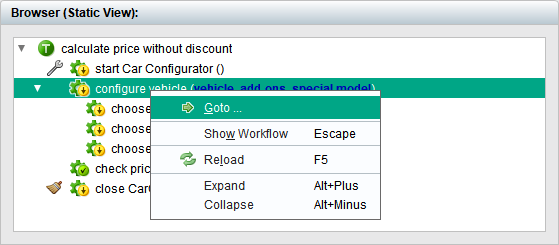
‘Go to’ from the browser (static view)
The browser is used to visualise structures in the keyword-driven test and data-driven test. It is now possible to jump to the elements displayed in the browser.
The existing functionalities are now also available via the context menu.
Opening detailed views with drag & drop
You can use drag & drop to ‘wait’ over tree elements so that they open their detail view and elements can be inserted directly into them.
This has always worked for all tab cards and expanding and collapsing trees.
Identify test elements used
Interactions that are used in test sequences of test case sets can be identified in the auxiliary object display.
Double-clicking on the name has the same function.
Double-clicking in the number column jumps to the element in the test element view.
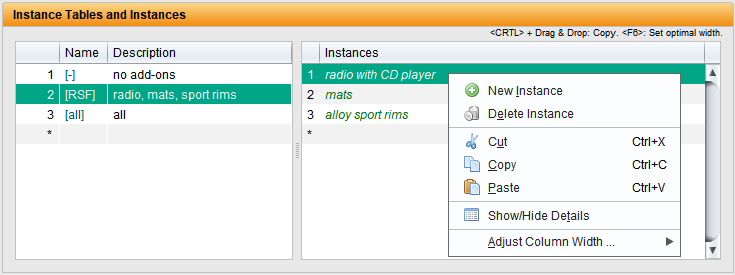
Copying and moving instances between instance tables
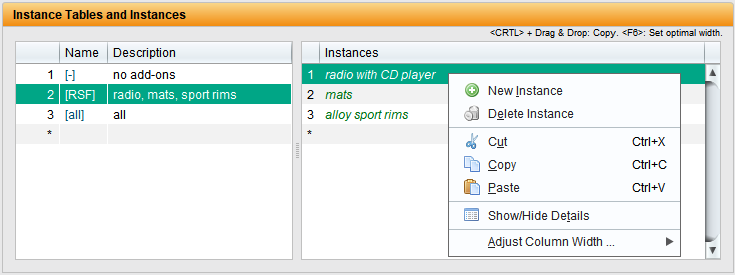
Instances can now also be copied between instance tables with using drag & drop or with the keyboard using +X and +V.
As before, drag & drop moves the instances between the instance tables.
Improved selection of representatives for generic data types
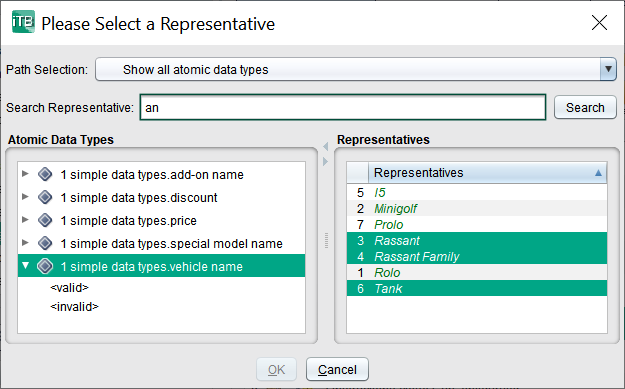
The selection dialog for representatives of a generic parameter can now be sorted and searched.
Sorting takes place via the column headings.
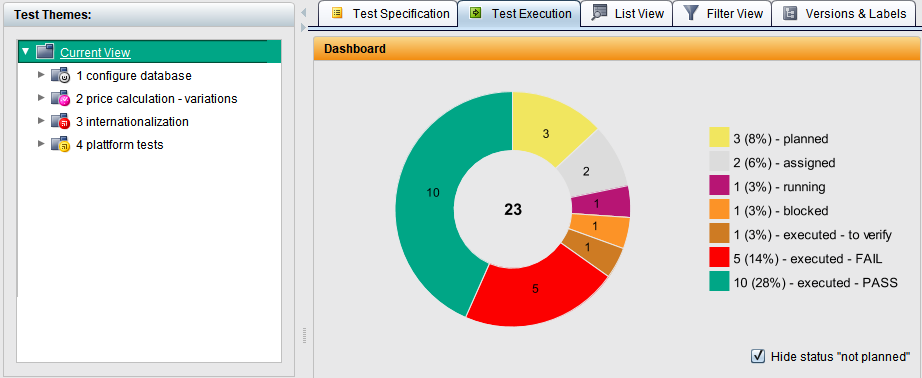
Status distribution of the test execution
The distribution of the status in the subtree is displayed in each test topic. The test cases are counted during test execution.
The graphic can be saved or printed in the context menu of the metric.
For the root of the test topic tree, the Current view, the status distribution for the entire tree is displayed.
Copying the test case table to the clipboard
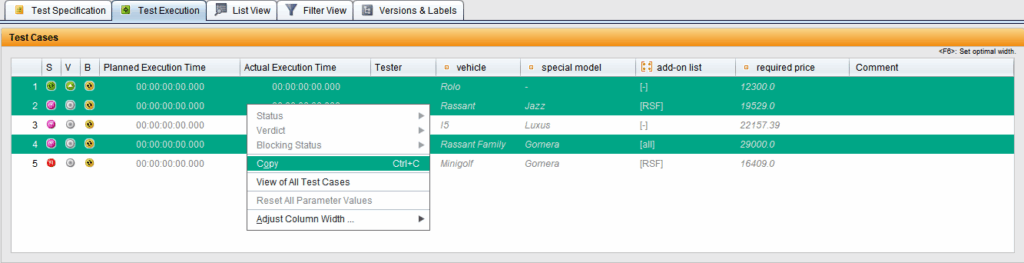
The data of the selected test cases in the test execution can be copied to the clipboard as a semicolon-separated list and pasted into Excel, for example.

Offline development of MS Word based reports
Microsoft Word reports can be generated using the command line tool generate-word-report.bat or generate-word-report.sh.
Locally saved XML reports are processed directly. An export via the client is therefore only required once during development.
The package can be requested from Support.